Reach your MikroTik router from anywhere
Open a short, secure Winbox session to any of your hotspot routers from the dashboard, even when the router sits behind your internet provider's network. No public IP, no port forwarding.
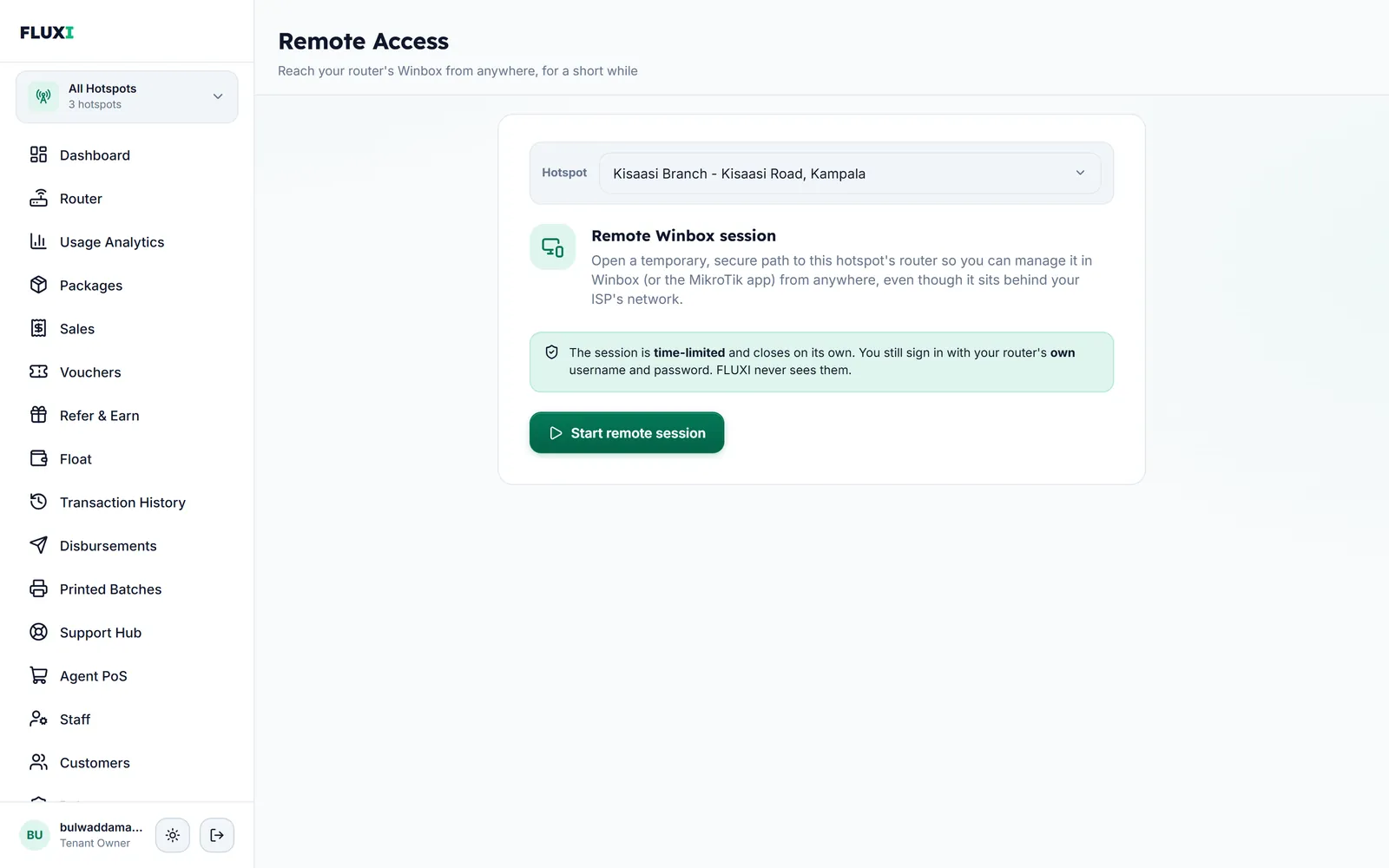
What FLUXI does for you
No public IP needed
During setup the router opens an encrypted link out to FLUXI. Because the router dials out, it can be reached even behind your provider's shared network.
Winbox in a few clicks
Pick the hotspot and start a session. FLUXI gives you an address to open in Winbox or the MikroTik app.
Closes on its own
Each session is time-limited and shuts itself after 30 minutes. You can close it sooner.
Your password stays yours
You sign in with the router's own username and password. FLUXI never sees them.
How it works with MikroTik
- Open Remote Access and pick the hotspot.
- Start a remote session. FLUXI opens a temporary path to that router.
- Open the address in Winbox or the MikroTik app and sign in with the router's own login.
- Close the session when you are done, or let it close itself.
What it does not do
We would rather say it plainly.
- It opens Winbox only. It is not a full connection into your customers' network.
- Only the account owner can start a session.
- The router has to be powered on and online.
Frequently asked questions
Do I need a public IP address for remote access?
No. The router connects out to FLUXI, so it works behind your internet provider's network without port forwarding.
How long does a remote session last?
Up to 30 minutes. It closes on its own, or you can close it sooner.
Does FLUXI know my router password?
No. You type the router's own username and password into Winbox. FLUXI never sees them.
Can my staff use remote access?
No. Routers belong to the owner, so only the owner can start a session.
Related guides
More FLUXI features
Run your hotspot on FLUXI
Sell by voucher or mobile money, keep every shilling accounted for, and see every router from one dashboard.
Get Started