Reports and exports for your hotspot numbers
Download your sales, wallet transactions and vouchers as spreadsheet files for the dates you pick, and download any printed batch again as a PDF.
What FLUXI does for you
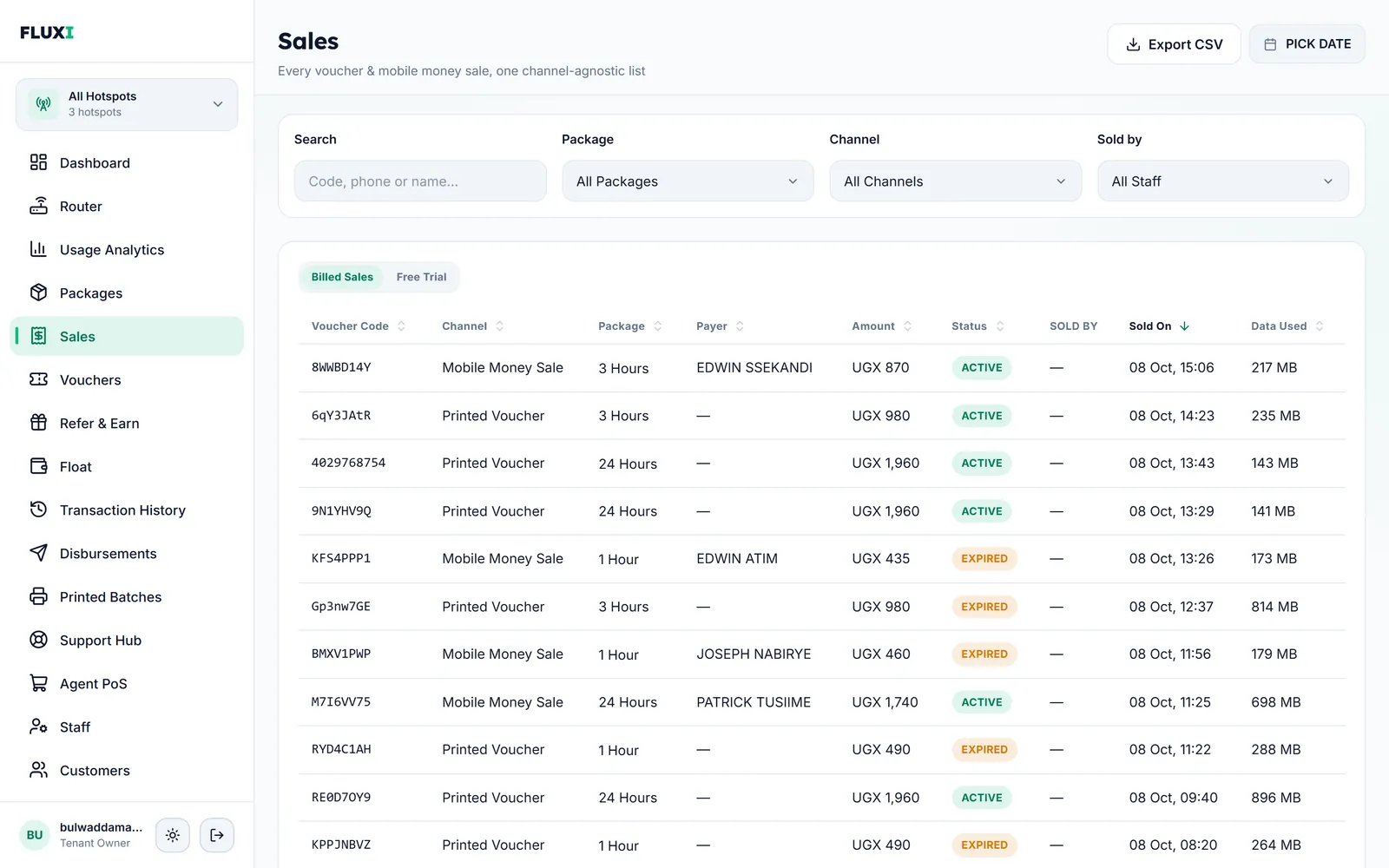
Sales to a spreadsheet
Export the sales that match your filters, with code, channel, package, payer, amount, status, seller, dates and data used. Each export holds up to 100 sales.
The whole ledger
Transaction History exports every row that matches the tab and dates you choose, not just the page on screen.
Vouchers too
Export the vouchers that match your filters, up to 200 per file.
Printed batches as PDF
Download any batch you have printed again, in your chosen print design.
Reports on screen
Your dashboard shows revenue over time by channel. Usage Analytics shows sales per package and your top customers.
How it works with MikroTik
- Open Sales, Transaction History or Vouchers.
- Pick the dates and any filters you need.
- Press Export CSV and open the file in Excel or Google Sheets.
What it does not do
We would rather say it plainly.
- There is no programming interface (API) and no automatic sync with accounting software.
- It does not email reports on a schedule. You export when you need to.
- Sales exports hold up to 100 rows and voucher exports up to 200. Narrow the dates to export more.
Frequently asked questions
Can I export my hotspot sales to Excel?
Yes. Sales, Transaction History and Vouchers each have an Export CSV button. The file opens in Excel and Google Sheets.
Does the export follow my date filter?
Yes. Each export uses the dates and filters on screen.
Is there an API?
No. FLUXI does not offer a programming interface or automatic accounting sync. Exports are spreadsheet files.
Can I download a voucher batch again?
Yes, from Printed Batches, as a PDF in your chosen print design.
Related guides
More FLUXI features
Run your hotspot on FLUXI
Sell by voucher or mobile money, keep every shilling accounted for, and see every router from one dashboard.
Get Started